Installation
PosterFlow is distributed as a Windows desktop installer. Download it from the official PosterFlow website or from the supporter download link provided after Early Access access is granted.
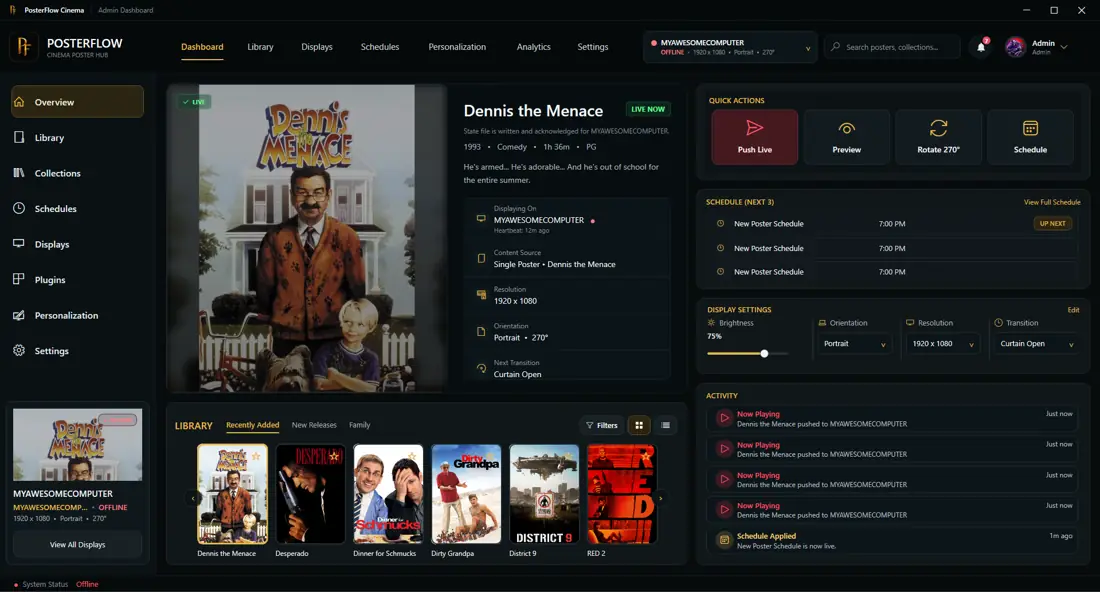
Basic install flow
- Download the current PosterFlow installer.
- Run the installer on the Windows machine that will manage PosterFlow.
- Open PosterFlow Admin from the Start Menu or desktop shortcut.
- Activate Early Access if prompted.
- Add or import poster artwork.
- Configure the Display Client and push content live.
Admin Console and Display Client
PosterFlow is easiest to understand as two pieces:
| Part | Purpose |
|---|---|
| Admin Console | Manage posters, collections, schedules, display settings, plugins, and app options. |
| Display Client | Show poster artwork on the screen or monitor that acts as the poster display. |
You may use both pieces on the same Windows PC, or you may use the Display Client in a dedicated display setup depending on how your installation is packaged.
Before installing
Recommended checks before installation:
- confirm the PC is running a supported version of Windows
- confirm you have permission to install desktop applications
- decide where your poster artwork or media library will live
- keep your Early Access email and key available, if activation is required
- close older PosterFlow windows before updating or reinstalling
Updating over an existing install
For normal updates, install the newer PosterFlow build over the existing one unless the release notes say otherwise. Do not manually delete your PosterFlow data folder unless you intentionally want to remove settings, cached data, display configuration, or local library information.
Uninstalling
Use Windows Apps & Features or Installed apps to uninstall PosterFlow. If the uninstaller offers an option to remove all app data, read that prompt carefully. Removing app data may delete local PosterFlow settings and configuration.